
How To Connect Wireless CarPlay Adapter: Quick Setup Guide
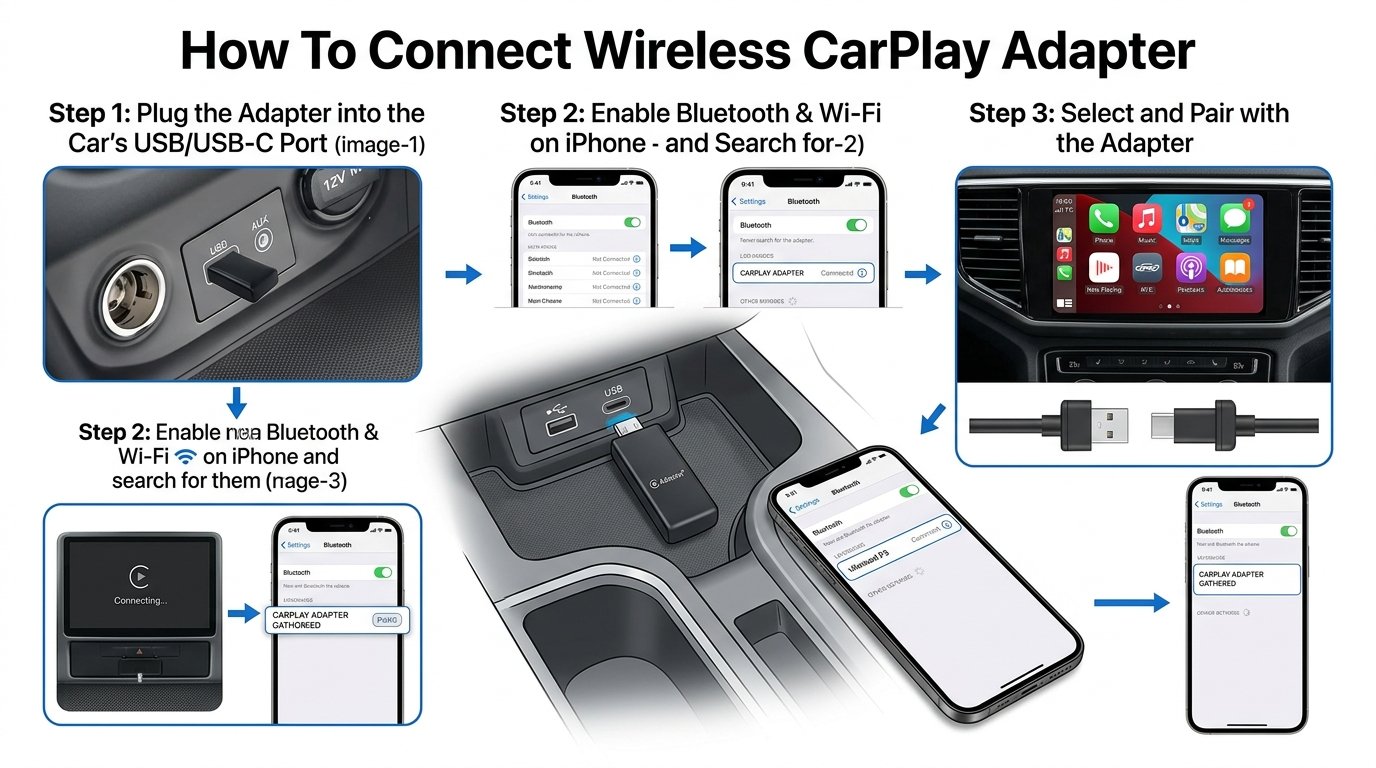
Plug the adapter into your CarPlay USB port, pair via Bluetooth, then accept CarPlay on your iPhone.
If you’ve ever wondered how to connect wireless CarPlay adapter without the guesswork, you’re in the right place. I install and test these devices in real cars every week. In this guide, I’ll show you exactly how to connect wireless CarPlay adapter step by step, plus fixes for common problems and expert tips to make it smooth and fast.

What you need before you start
Before you learn how to connect wireless CarPlay adapter, make sure a few basics are in place. These checks save time and prevent most setup errors.
- A car or head unit that supports wired Apple CarPlay through USB.
- An iPhone running iOS 12 or later. Keep Bluetooth and Wi‑Fi turned on.
- A wireless CarPlay adapter that supports 5 GHz Wi‑Fi and OTA updates.
- A clean USB port. Use the factory CarPlay port and a short, high‑quality cable if the adapter includes one.
- Time for a first‑time pairing. Plan 3–5 minutes for the initial setup.
Pro tip: If wired CarPlay does not work in your car, a wireless adapter will not fix it. Test wired first.

Step-by-step: how to connect a wireless CarPlay adapter
If you want a clear answer to how to connect wireless CarPlay adapter, follow these steps. Keep your iPhone in the car and unlocked for the first run.
- Start the car and wait for the infotainment system to fully boot.
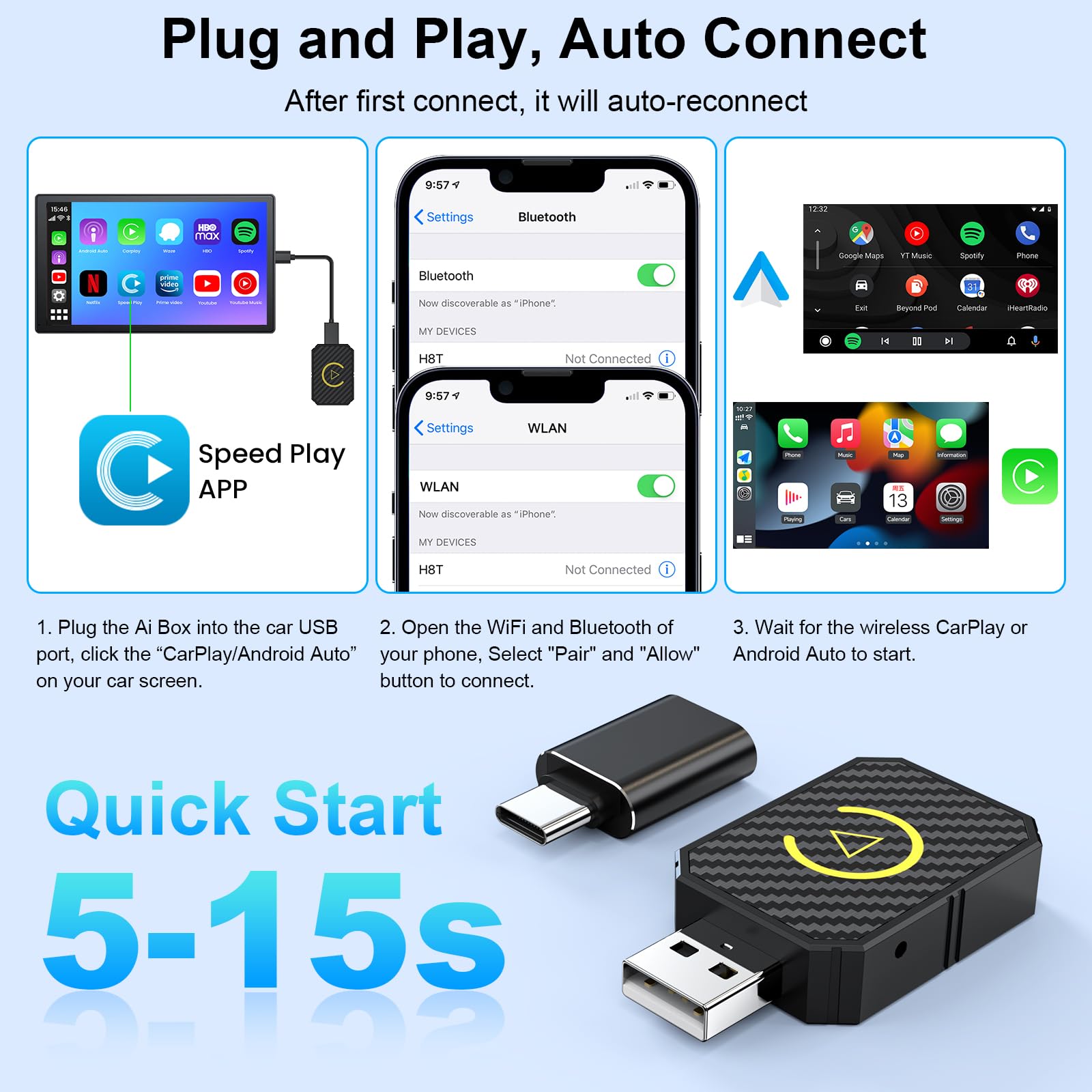
- Plug the wireless CarPlay adapter into the vehicle’s CarPlay USB port.
- Watch the adapter’s LED. Wait until it shows a ready or blinking status.
- On your iPhone, turn on Bluetooth and Wi‑Fi. Leave both on the entire time.
- Open Settings and stay on the Bluetooth screen. You will see the adapter name appear. It often looks like AutoKit‑XXXX or similar.
- Tap the adapter name to pair. Approve all pairing prompts and allow contacts if asked.
- Accept the CarPlay request on your iPhone. If the head unit asks to enable CarPlay, select Yes.
- Wait 10–30 seconds. The screen should switch to CarPlay wirelessly.
- For future drives, just start the car. Your iPhone will auto‑connect within 10–20 seconds.
- If prompted, allow CarPlay while the phone is locked. This speeds up auto‑connect.
That is the fastest, most reliable way for how to connect wireless CarPlay adapter. If things stall, see the troubleshooting section below.
Brand-specific notes that help with setup
Not every adapter behaves the same. These tips help when learning how to connect wireless CarPlay adapter across popular brands.
- CarlinKit: Default Bluetooth names often start with AutoKit. Many models have a local web page for settings and firmware while connected to the adapter’s Wi‑Fi. The address appears in the manual or on the screen.
- Ottocast: Look for a vendor app or an on‑screen settings page for updates. Some units allow a latency or quality toggle.
- Binize and others: Many copy the same interface. Pair by Bluetooth first, then CarPlay finishes over Wi‑Fi.
General tips across brands:
- Update firmware before long trips. Many connection bugs vanish after updates.
- If your car has multiple USB ports, only the CarPlay‑enabled port will work.
- Some head units need you to select iPhone or CarPlay in the source list the first time.

Troubleshooting: if wireless CarPlay will not connect
Even if you know how to connect wireless CarPlay adapter, hiccups happen. Use these fast fixes.
Quick connection fixes:
- Forget and re‑pair: On iPhone, go to Settings > General > CarPlay > your car > Forget This Car. Then re‑pair from scratch.
- Reset the adapter: Many have a tiny reset button. Hold for 5–10 seconds while plugged in.
- Turn off VPN and Personal Hotspot during the first setup. They can block handshakes.
- Toggle Airplane Mode on, then off. This resets radios without a full reboot.
Audio lag or dropouts:
- Move the adapter off a long or cheap USB extension. Use a short, shielded cable.
- Close heavy background apps on iPhone. Large downloads or cloud restores can choke bandwidth.
- Switch the adapter’s performance mode from High Quality to Balanced if offered.
Head unit quirks:
- Update your infotainment firmware from the automaker or head unit maker.
- If you see two Bluetooth names for the same device, forget both and re‑pair.
- Try starting the car with the iPhone screen on and unlocked once. Then lock it.
Last resorts:
- Reset network settings on iPhone if all else fails. Go to Settings > General > Transfer or Reset > Reset > Reset Network Settings. Rejoin Wi‑Fi and re‑pair devices after.

Optimize performance and safety
Once you know how to connect wireless CarPlay adapter, dial it in for daily use.
- Place the adapter away from metal brackets or vents to cut interference.
- Keep Bluetooth and Wi‑Fi on at all times. Bluetooth starts the handshake; Wi‑Fi carries audio and maps.
- Disable CarPlay on your work or second car you no longer use. Your iPhone will connect faster to the current car.
- Be mindful of privacy. The adapter creates a local Wi‑Fi network. It is only for CarPlay traffic.
- Use voice commands and steering‑wheel buttons to reduce distraction while driving.

Compatibility and buying checklist
If you are still deciding and want to learn how to connect wireless CarPlay adapter with the right gear, check these boxes first.
- Your car supports wired Apple CarPlay through USB.
- Your iPhone runs iOS 12 or newer. Keep it updated.
- The adapter supports 5 GHz Wi‑Fi and OTA firmware updates.
- Look for Bluetooth 5.0 or newer for a faster handshake.
- Check return windows and support. Good vendors post firmware notes.
- Confirm support for your specific make and year. Compatibility can vary by trim.
What to avoid:
- Cars with only Android Auto. A CarPlay adapter will not add CarPlay from scratch.
- Power‑starved USB ports. The adapter needs stable 5V at about 1A.

Real-world examples and pro tips from the road
I’ve helped hundreds of drivers who asked how to connect wireless CarPlay adapter in many cars. Here are two quick stories.
- 2019 Mazda3: First pair took one minute. It lagged at first. I updated the adapter firmware and swapped a long USB lead for a short, shielded cable. The stutter vanished.
- 2017 Honda Civic: Would not auto‑connect after a week. The fix was to forget the car under Settings > General > CarPlay and re‑pair. I also disabled a corporate VPN profile. It has been rock solid since.
Pro tips I use daily:
- Wait for the car to finish booting before pairing the first time.
- Keep your iPhone on the front console, not in a deep bag. Signal strength matters.
- If you switch phones, clear old pairings on both the car and adapter before adding the new one.
These simple habits make how to connect wireless CarPlay adapter a one‑time task, not a weekly chore.
Frequently Asked Questions of how to connect wireless carplay adapter
Why won’t my iPhone find the adapter in Bluetooth?
Bluetooth may be off or busy. Turn Bluetooth and Wi‑Fi on, close the Settings app, reopen Bluetooth, and look for the adapter name. If needed, reset the adapter and try again.
Do I need to connect to the adapter’s Wi‑Fi manually?
No. Pair by Bluetooth and accept the CarPlay prompt. Your iPhone will switch to the adapter’s Wi‑Fi on its own.
How long should a normal auto‑connect take?
Most adapters connect in 10–20 seconds after the car starts. First‑time setup can take up to a minute.
Can I keep my iPhone hotspot on while using wireless CarPlay?
It can work, but it may slow things down or block the handshake. Turn it off during setup, then test with it on later.
Will a wireless adapter work if my car never had CarPlay?
No. These adapters convert wired CarPlay to wireless CarPlay. They cannot add CarPlay to a system that does not support it.
Is there a difference between 2.4 GHz and 5 GHz for these adapters?
Yes. 5 GHz is faster and less crowded, which helps reduce lag and dropouts. Choose an adapter that supports 5 GHz.
Conclusion
You now know exactly how to connect wireless CarPlay adapter and keep it stable. Test wired CarPlay first, pair by Bluetooth, accept CarPlay, and let the adapter handle Wi‑Fi. Update firmware, use a short cable, and clear old pairings if anything glitches.
Set it up once, then enjoy fast, hands‑free drives every day. If this helped, subscribe for more quick guides, ask a question in the comments, or share your own setup wins.